Today I’m going to reveal the best batch watermark tool in 2019.
And this is important:
I didn’t just rate the tools based on my personal opinion.
I put each batch watermark tool to the test.
That way, I could find the best backlink tool on the market right now… based on actual data.
So, without further ado, let’s do this!
Introducing The Competitors
Before we dive into the test results, let’s take a quick look at each tool.
Watermark.ws
Watermark.ws was one of the first web app that let anyone add watermarks to photos online.
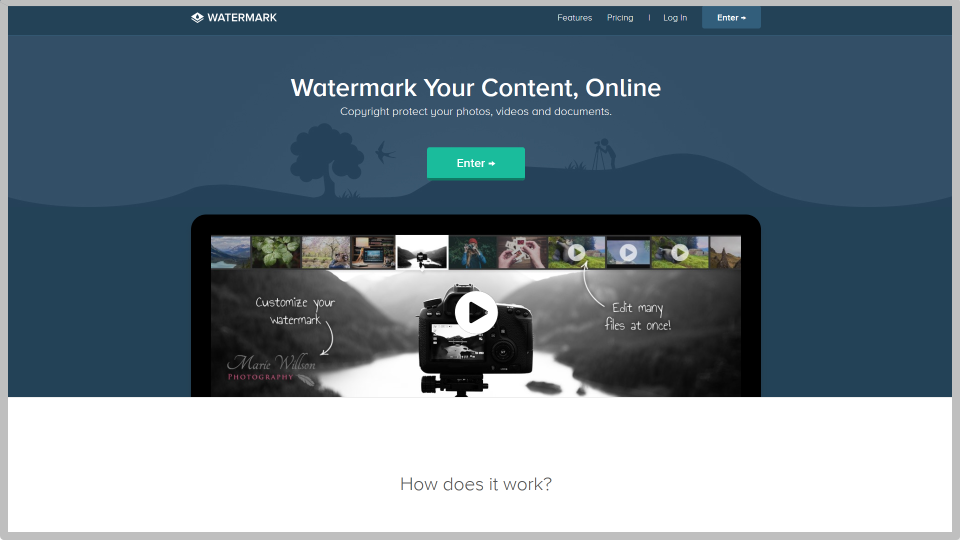
The tool (and company) is popular because of processing unlimited files at once.
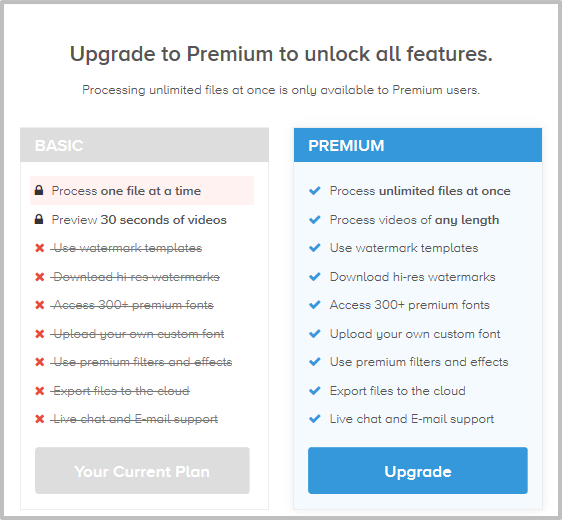
But since they offer a “freemium” model with quick onboarding for users, batch watermark or process unlimited photos are allowed to Paid users, which costs $6.99 per month or $49.99 annually.
With a free account, you can process only one file at a time and you can’t download high resolution watermarks.
Let’s check out our next batch watermark tool…
Watermarkly is an online batch watermarking app and the company claims to create and add the watermark using quick process (50 photos in 5 minutes)

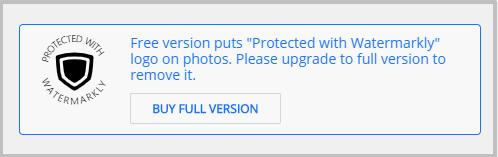
You can use the app for free, but it adds “Protected with Watermarkly” logo along with your own watermark and charging a $32.95 to remove this.
Watermark.ink is an online photo watermarking tool. You can add your own logo images and convert your text or logo into your templates for future use. Developer, Krishna said that the service(version 1) is fully browser based, so there is no performance difference between paid and unpaid version.

Currently there is only one limit for free version; free version is no for commercial use. But when version 2 is released, they will add download limits and/or other hard limits to free version.

Ediker started as a straight-up bulk photo editing tool. Your photos are watermarked with modern browser abilities on your computer, they do not get uploaded or transmitted to any servers.
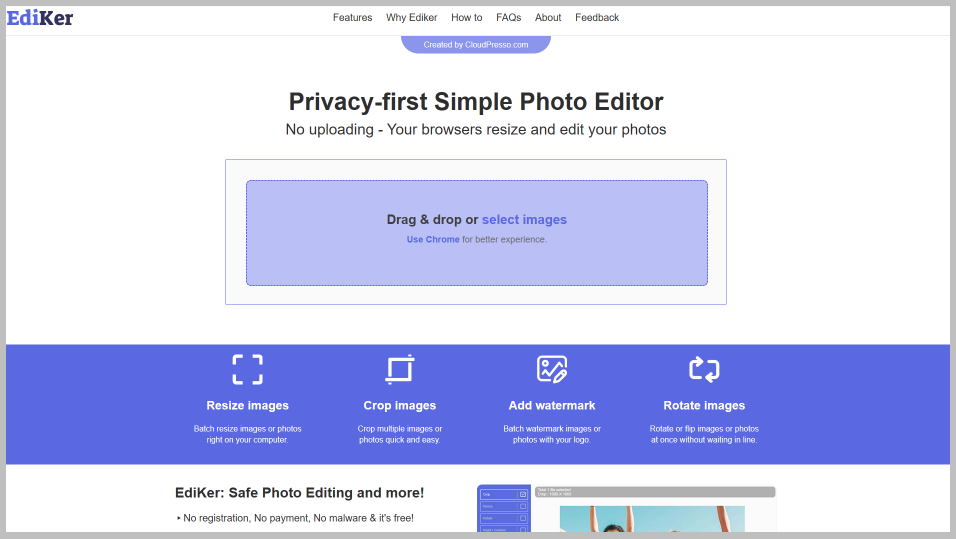
They’ve recently branched with lots of new features, like a bulk photo resizer tool. It is a totally free online service that enables you to add your brand logo or a watermark in bulk.
Here are summaries of famous online batch watermark software license.

Which Online Photo Watermark App Add Watermark Without Losing Quality?
This test I did was check how much quality and file size the photos loses after adding watermark.
Before answer this question, we have to understand the JPEG file type.
JPEG is the default file type for most digital camera, unless you shoot in RAW file format with DSLR camera.
JPEG is a compressed file format. What that means is every time you save and re-save it; you’re losing a little bit of image quality. With a JPEG quality setting, you can control the amount of information is discarded. Then is JPEG lossless when quality is set to 100? No. JPEG is a lossy compression file type, quality ratio does not make it lossless. Some original image formation is lost regardless of the quality setting.
In general, quality level of 80% produce good enough images without a noticeable loss of quality by the human eye. If you set watermark on an image with higher quality, set to higher JPEG quality than 80%, but make sure that higher quality results in a bigger file size.

Let’s go back to the question – which online photo watermark app add watermark without losing quality? There is no watermark app keeping original quality at 100%. Instead, I will test which watermark app produces a high quality (setting the compress quality to 80%) at optimal file size without sacrificing quality?
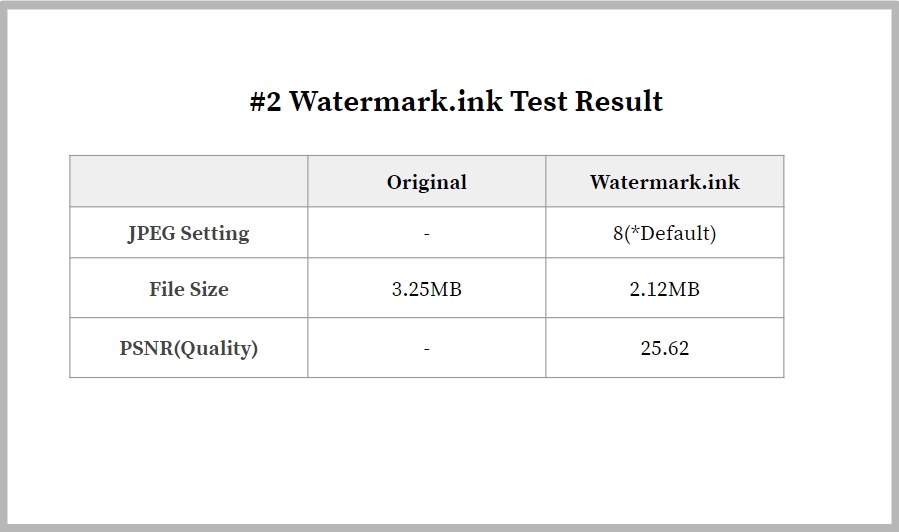
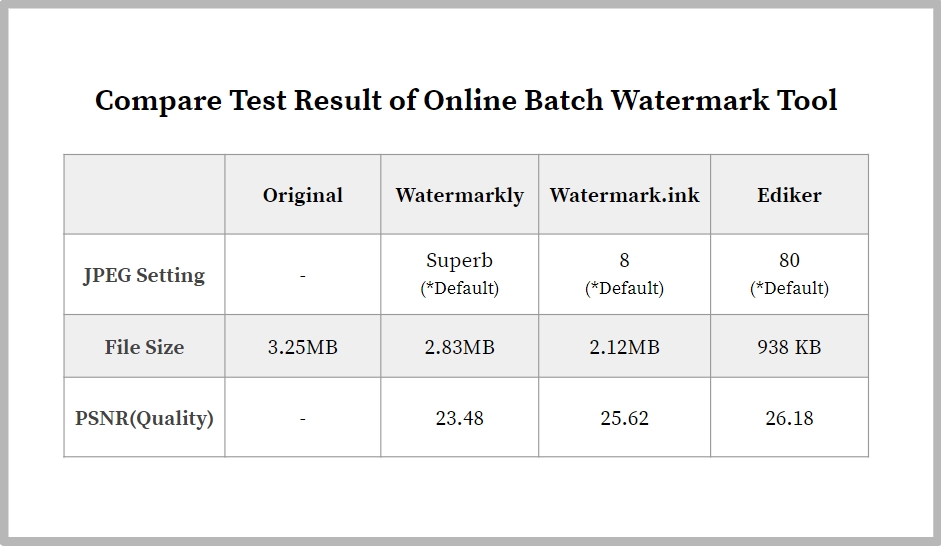
Then how do we compare the quality between original and watermarked image? How do I calculate degradation after watermark embedding process? For this test, I use PSNR algorithm to simulate the perception of our eye. PSNR, Peak- signal-to noise ratio (PSNR), is a quality measurement between two images. If the PSNR is high, the quality of watermarked image is very closed to the original. But better visual quality also increased the file size. So, you have to find the balance between image quality and file size.
Let’s see what each tool finds an optimal balance for the good visual quality at low file size.
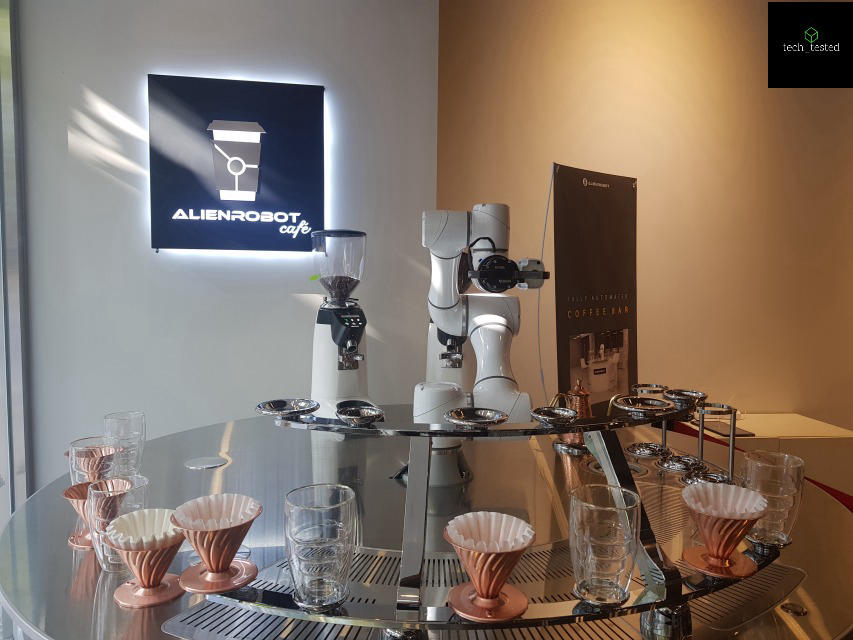
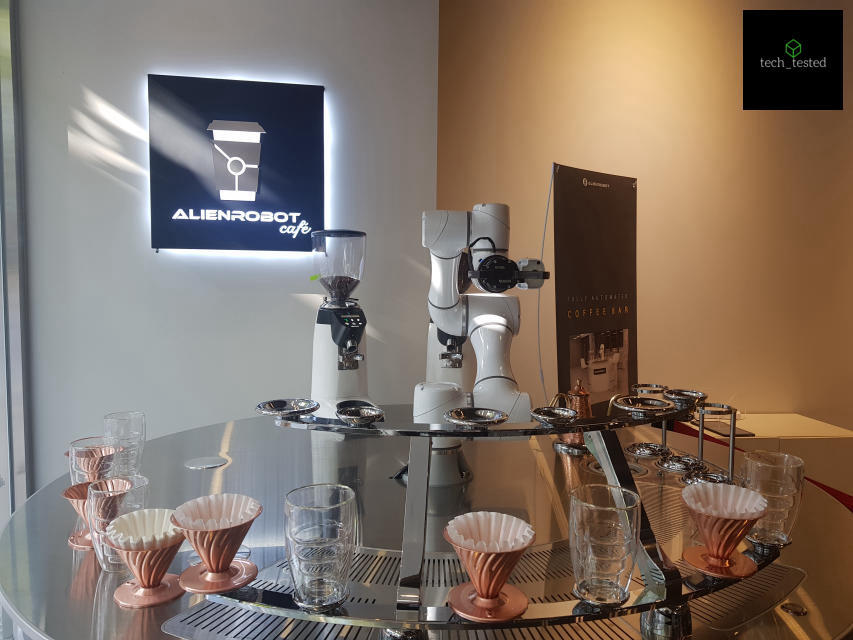
The test image is this one: Robot Barista.jpg
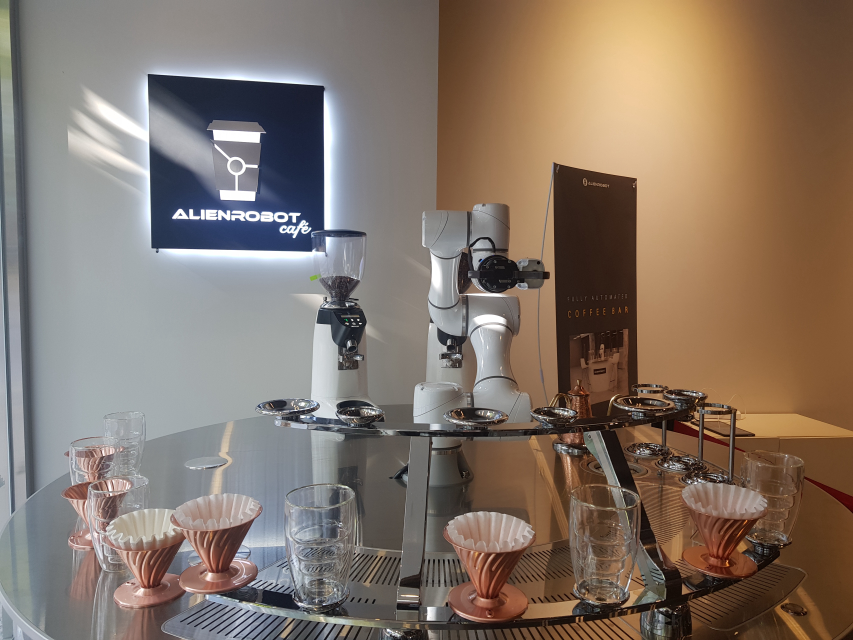
Note: This photo taken with Samsung Galaxy Note 8 camera and 3.25MB in size.
App #1: Watermarkly
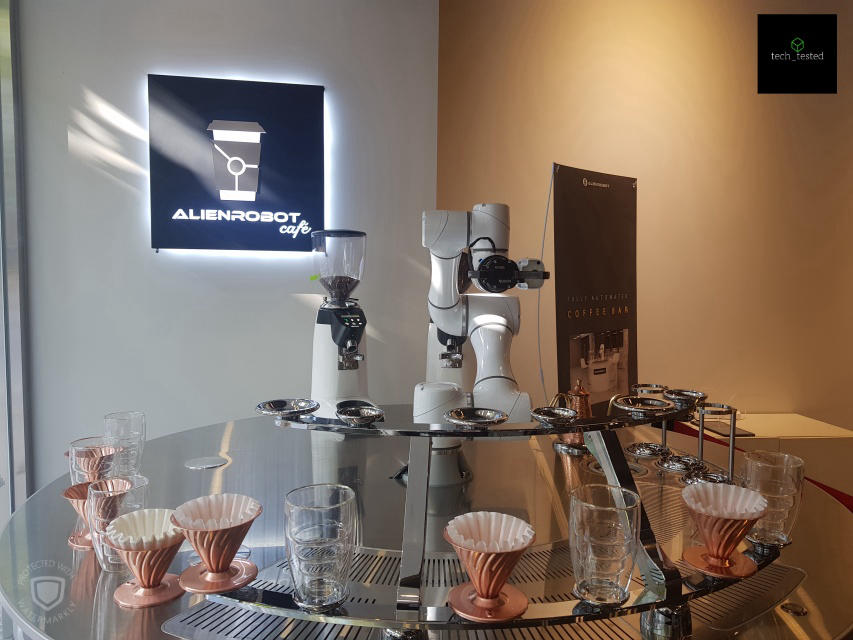
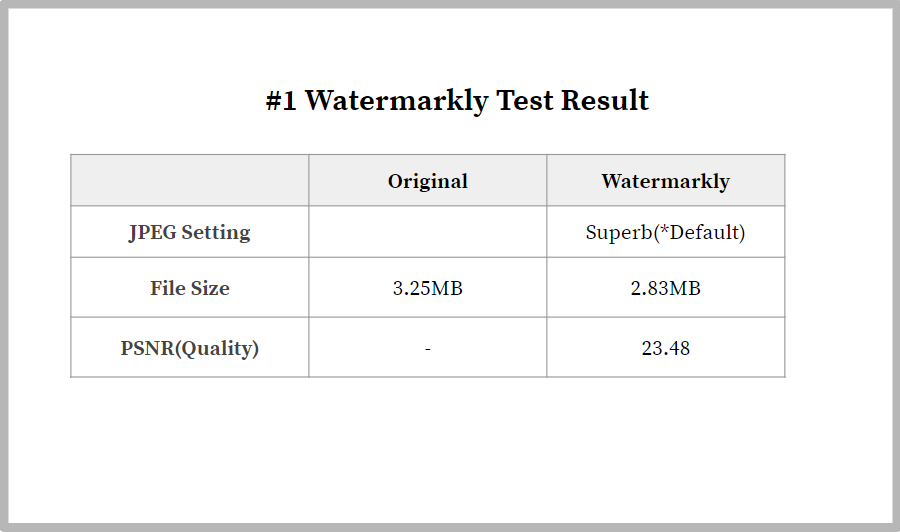
Watermarkly use their own JPEG quality setting; Maximum to Medium. And it lets you change a JPEG quality by selecting it in the drop-down menu.
Test image is watermarked at default JPEG quality (Superb).
App #2: Watermark.ink
You have a JPEG quality slider that goes from 1 to 10. The default setting is quality 8.
App #3: Ediker
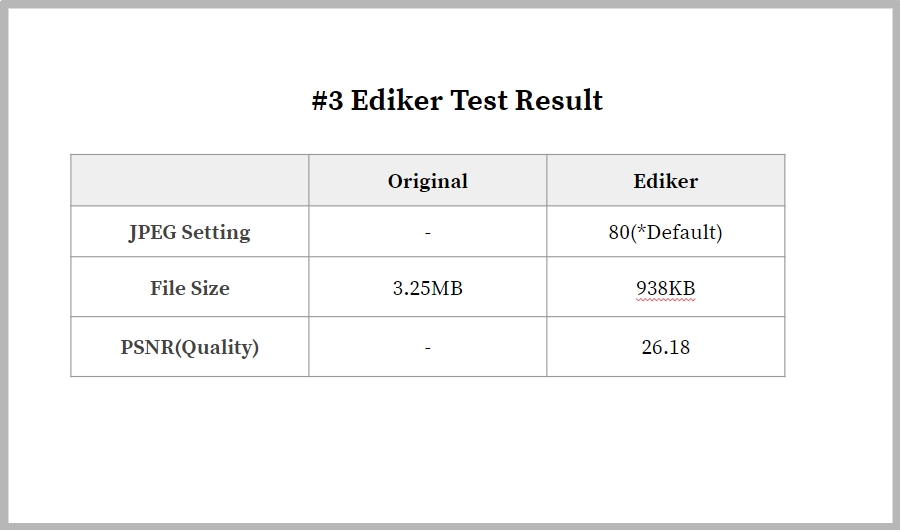
JPEG quality setting will be shown under Save Option. You can move JPEG option slider horizontally for quality level selection; scale from 1(worst) to 100(best). Default quality setting for JPEG is 80.
And the Winner Is…
Based on the results of this little test, Ediker comes out on top. It’s got an optimal file size with the highest (PSNR) quality.
Now, I’d like to hear from you; which online photo watermark tool do you use to add image watermark?